![fluint_white_logo.png]](https://docs.fluint.io/hs-fs/hubfs/fluint_white_logo.png?height=40&name=fluint_white_logo.png)
What is the Salesforce Integration? ✨
Fluint's Salesforce integration creates a bi-directional connection between your CRM and Fluint workspace. This integration automatically syncs your opportunities (deals), contacts, and email activity, ensuring your deal context in Fluint always reflects your latest Salesforce data. Content generated in Fluint can also sync back to your Salesforce records, keeping entire teams aligned.
Why Connect Salesforce?
Our Salesforce integration provides several key benefits:
- Automatic deal sync - Opportunities import into Fluint for all licensed reps without manual creation
- Real-time updates - Changes (such as opportunity stage) in Salesforce reflect automatically in Fluint and can be tied to content actions, like Playbooks.
- Email activity tracking - Salesforce email messages sync to relevant deals as additional context
- Content sync-back - Documents generated in Fluint attach to Salesforce opportunity records
How the Integration Works
Fluint's Salesforce integration is designed to be lightweight and straightforward:
OAuth Connection
- Single OAuth connection
- Recommended: Set up a dedicated API integration user (not tied to a single person)
- No managed package installation required
API-Based Sync
- Fluint pulls data from Salesforce APIs on a time interval
- Read-level integration for most objects
- Minimal impact on your Salesforce API limits (throttled for large instances)
What Gets Synced:
- Opportunity stages (to match Fluint's pipeline stages)
- Opportunity records (deals with names, stages, owners, and key details)
- Contacts associated with opportunities
- Email messages related to opportunities
Content Sync-Back:
- Documents created in Fluint are stored as Content Document objects in Salesforce
- Each document update creates a new Content Version
- Files appear on the opportunity record under the Files related list
Salesforce Prerequisites & Configuration
Before connecting Fluint to Salesforce, your Salesforce admin needs to configure several settings to ensure a smooth integration:
1. Verify Your Salesforce Edition Supports API Access
Salesforce editions offer different levels of API access, which can affect how the Fluint integration works. Before setting up your integration, confirm whether your Salesforce edition includes API access.
- Some editions include full API access by default, while others may offer limited access or require additional purchases
- To check if your Salesforce edition supports the necessary API access, please refer to Salesforce's official documentation on API access by edition
- If your Salesforce edition does not include the required API access, contact your Salesforce account representative to upgrade your edition
2. Configure Token Policy Settings
Salesforce access tokens expire after a certain period. To ensure your integration continues working without interruption, you need to set your refresh token policy correctly.
To configure this setting in Salesforce:
- Log in to Salesforce
- Go to Setup
- In the Quick Find box, search for Connected Apps
- Click on Manage Connected Apps
- Find and click on the name of the Fluint application
- Scroll down to the OAuth Policies section
- Look for Refresh Token Policy
- Under IP Relaxation, select Relax IP restrictions
- Make sure the refresh token policy is set to Refresh token is valid until revoked
- Click Save
3. Check API Access Control Settings
Salesforce allows administrators to restrict which applications can access Salesforce data through APIs. You need to ensure that API access isn't limited to only specific connected apps.
To verify your API access control settings:
- Log in to Salesforce
- Go to Setup
- In the Quick Find box, search for Connected Apps OAuth Usage
- Under the list of connected apps, find the Fluint app and click Manage App Policies
- In the OAuth Policies section, ensure the Permitted Users status is one of:
- Admin approved users are pre-authorized - only selected users can access
- All users may self-authorize - all users can access the app
- Click on Install next to your connected app
- In the OAuth Usage and Policies section, set the appropriate permissions level
- Click Save
4. Create and Configure Integration User
The user that connects the Salesforce integration should either be a System Administrator or a user that has been assigned a user profile with sufficient permissions. We strongly recommend creating a dedicated API integration user for this purpose.
A. Create a Custom User Profile: To create a new user profile for the integration:
-
- Log in to Salesforce
- Go to Setup
- In the Quick Find box, search for Profiles
- Click on the New button
- Choose an existing profile to clone - we recommend Standard User
- Important: Please ensure that you clone a user profile with the Salesforce User License. The Salesforce Platform User License is insufficient for this integration
B. Configure User Profile Permissions: After creating the profile, you'll need to set specific permissions:
-
- Go to Setup > Profiles
- Select the user profile you created
- Click Edit at the top of the page
- Ensure the checkboxes for the necessary permissions below are checked:
Required Administrative Permissions:
-
- API Enabled ✓
- One of the following:
- Approve Uninstalled Connected Apps - Choose this if API Access Control isn't enabled
- Use Any API Client - Choose this if API Access Control is enabled (can be enabled by contacting Salesforce Customer Support)
Additional Required Permissions:
- View Setup and Configuration ✓
- View Roles and Role Hierarchy ✓
- Manage Custom Permissions ✓
- Customize Application ✓
- Modify Metadata Through Metadata API Functions ✓
- Allows Users to Modify Named Credentials and External Credentials ✓
- Click Save at the top or bottom of the page
Required Salesforce Object Permissions
Your Salesforce admin will need to grant Read access to the following objects and fields for the integration user:
1. User Object
Object Permission: Read
Required Fields:
- Id (User ID)
- FirstName
- LastName
- Username
- IsActive
Purpose: Identifies Salesforce users and matches them to Fluint accounts via email address.
2. OpportunityStage Object
Object Permission: Read
Required Fields:
- Id (Opportunity Stage ID)
- ApiName
- DefaultProbability
- Description
- ForecastCategory
- ForecastCategoryName
- IsActive
- IsClosed
- IsWon
- MasterLabel
- SortOrder
Purpose: Syncs your Salesforce opportunity stages to Fluint's deal pipeline stages.
3. Opportunity Object
Object Permission: Read
Required Fields:
- Id (Opportunity ID)
- Name (Opportunity Name)
- StageName
- OwnerId
- IsClosed
- IsDeleted
- CreatedDate
- Type
Purpose: Syncs your Salesforce opportunities as deals in Fluint.
4. Contact Object
Object Permission: Read
Required Fields:
- Id (Contact ID)
- FirstName
- LastName
Purpose: Syncs contact information associated with your opportunities.
5. EmailMessage Object
Object Permission: Read
Required Fields:
- Id (Email Message ID)
- ActivityId
- BccAddress
- CcAddress
- EmailTemplateId
- FirstOpenedDate
- FromAddress
- FromName
- Headers
- HtmlBody
- Incoming
- IsBounced [May require special permission]
- IsClientManaged [May require special permission]
- IsDeleted
- IsExternallyVisible
- IsOpened
- IsTracked
- LastOpenedDate
- MessageDate
- MessageIdentifier
- Name (Subject)
- ParentId [May require special permission]
- RelatedToId
- ReplyToEmailMessageId
- Status
- Subject
- TextBody
- ThreadIdentifier
- ToAddress
- ValidatedFromAddress
Purpose: Syncs email activity related to opportunities, providing rich context for your deals.
Note: Some EmailMessage fields may require special Salesforce permissions or Enhanced Email features to be enabled.
Setting Object and Field Permissions
For Custom User Profile - Object Access
- Click the gear icon in the top-right corner and select Setup
- In the left-hand search bar, type Object Manager and open it
- Choose the object you need (for example, Account, Opportunity, Contact, etc.)
- Go to Object Access in the left navbar
- Select the Profiles tab at the top
- Click Edit and grant the necessary permissions for the custom user profile that you created:
- If the integration needs to read data, ensure that Read, View All Records, and View All Fields are checked
- If the integration needs to write data (for content sync-back), ensure that all boxes are checked
For Standard User Profile - Field-Level Security
- Click the gear icon in the top-right corner and select Setup
- In the left-hand search bar, type Object Manager and open it
- Select the object you want to configure
- Select Fields & Relationships from the left navbar
- Find the field you want to adjust and click it
- Click Set Field-Level Security
- Ensure the checkbox for Visible is selected for the user profile you're using for the integration
- If the user profile is not visible in this list, it means that it does not have access to the object. You should choose a different user profile or create a custom user profile as described above
- Repeat for all fields that the integration needs to read, especially custom fields
Configuring Opportunity Page Layout
To ensure that documents synced from Fluint are visible to your team, you need to add the Files related list to your Opportunity page layout.
To add Files related list:
- Go to Setup
- Search for Object Manager in the Quick Find box
- Click on Opportunity
- Select Page Layouts from the left sidebar
- Click on the page layout your team uses (typically Opportunity Layout)
- Scroll down to the Related Lists section
- If Files is not already present, drag it from the palette on the left into the Related Lists section
- Click Save
This allows users to see content documents synced from Fluint directly on the Opportunity record.
Connecting Fluint to Salesforce
Prerequisites:
- Salesforce admin access
- Team plan in Fluint
- User list already added in Fluint
- Integrations admin access in Fluint
Implementation Steps:
1. Create Integration User (Recommended)
- Set up a dedicated API integration user in Salesforce
- This ensures the connection isn't tied to a single person's account
- Grant the user appropriate permissions (see Required Permissions above)
- Access Fluint
- Go to Settings > Integrations
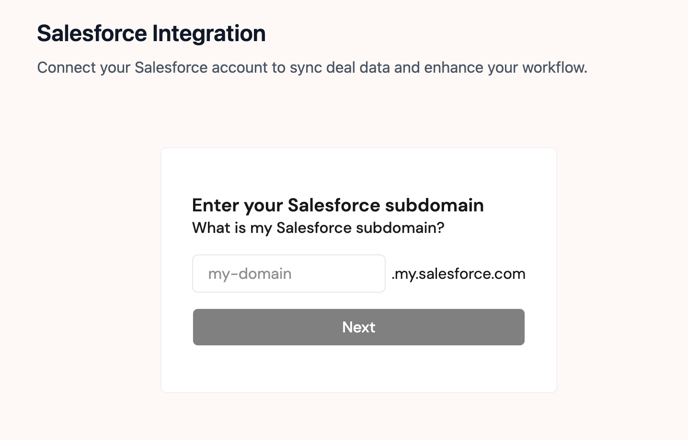
- Select Salesforce and enter your SFDC subdomain
- Click "Connect to Salesforce"
- Authenticate using your integration user credentials
- Review and approve the permission requests
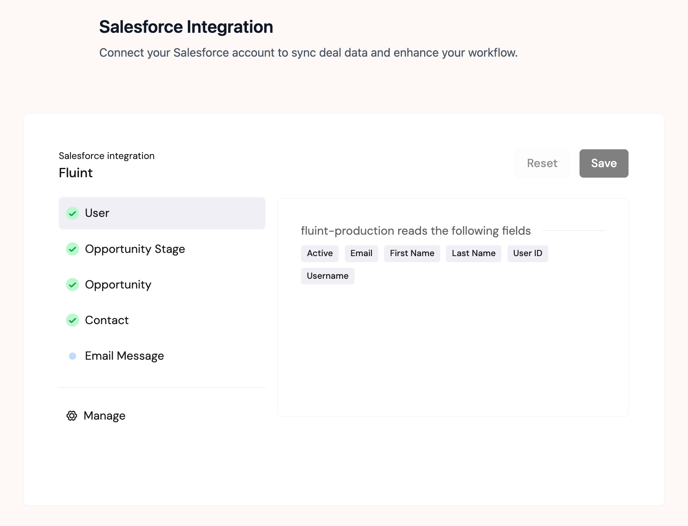
3. Install All Integration Objects within Fluint
- Start here: User
- Then: Opportunity Stage
- Then: Opportunity
- Then: Contact
- Finally: Email Message
4. Configure Backfill Parameters
- Date range - From beginning of time, last year, last two years, etc.
- Stage or record type filters - Such as excluding Closed Lost deals, or Renewal records
- Owner matching - Only opportunities owned by licensed Fluint users will sync
- Consider deal volume to avoid cluttering user dashboards
- Once installed, Fluint will perform an initial data import to populate existing deals
- Check your Fluint deal pipeline
- Look for the Salesforce logo on deal cards
- Verify that active opportunities are appearing correctly
Understanding User and Deal Matching
Email-Based Matching: Fluint matches users by comparing email addresses in Fluint to user email addresses in Salesforce. This is how the system connects the two platforms.
Opportunity Owner Sync:
- Fluint imports opportunities based on the Opportunity Owner field
- Only opportunities owned by licensed Fluint users will sync
- Opportunities owned by users not in Fluint are excluded from import
- When new users are added to Fluint, a backfill runs to load their opportunities
Data Retention:
- Once an opportunity is imported to Fluint, data is retained even if the user exits your company
- Data can be purged upon request for GDPR compliance
Implementation Checklist ✨
 Verify Salesforce edition supports API access
- Configure refresh token policy to "Refresh token is valid until revoked"
- Set IP Relaxation to "Relax IP restrictions"
- Verify API access control settings (Permitted Users)
- Create dedicated API integration user in Salesforce
- Create custom user profile with Salesforce User License
- Grant all required administrative permissions to profile
- Grant all required object and field permissions
- Configure field-level security for all required fields
- Add Files related list to Opportunity page layout
- Ensure user list has been provided to Fluint for license assignment
- Determine backfill parameters (date range, stage filters)
- Connect Salesforce via OAuth in Fluint Settings
- Install objects within Fluint, in order: User → Opportunity Stage → Opportunity → Contact → Email Message
- Verify deals are syncing correctly
- Test document creation and sync-back to Salesforce
Best Practices ✨
For Salesforce Admins:
- Use an API integration user - Don't tie the connection to an individual's account
- Grant permissions at profile or permission set level - Ensure all Fluint users have access
- Test with a single user first - Validate the integration before full rollout
- Review backfill parameters carefully - Balance historical data with dashboard usability
- Match email addresses - Ensure user email addresses in Fluint match those in Salesforce
- License users before connecting - Have your user list ready in Fluint before connecting Salesforce
Security & Data Privacy 🔒
- No data is deleted in Salesforce by the integration
- Content sync-back only occurs when you explicitly generate documents
- All data transmission is encrypted
- GDPR compliance: User data can be purged upon request
Troubleshooting Common Issues
Integration Not Syncing
Problem: Opportunities aren't appearing in Fluint
Solutions:
- Verify the integration user has Read access to all required objects and fields
- Check that opportunities are owned by licensed Fluint users
- Confirm email addresses match between Salesforce and Fluint
- Review backfill parameters and date range filters
Permission Errors
Problem: Error messages about insufficient permissions
Solutions:
- Verify the integration user profile has "API Enabled" checked
- Confirm either "Approve Uninstalled Connected Apps" or "Use Any API Client" is enabled
- Check that field-level security is set to Visible for all required fields
- Ensure object-level permissions include Read and View All Records
Token Expiration
Problem: Integration stops working after a period of time
Solutions:
- Verify refresh token policy is set to "Refresh token is valid until revoked"
- Confirm IP Relaxation is set to "Relax IP restrictions"
- Reconnect the integration in Fluint Settings if needed
Documents Not Appearing in Salesforce
Problem: Fluint-generated documents aren't showing on Opportunity records
Solutions:
- Verify the Files related list is added to the Opportunity page layout
- Check that the integration user has Create access to ContentDocument objects
- Confirm the opportunity exists in both Salesforce and Fluint
FAQs
Q: Do I need to install a managed package? A: No, Fluint uses OAuth and standard Salesforce APIs. No package installation is required.
Q: Will this affect my Salesforce API limits? A: Fluint's integration is designed to be lightweight and throttled for large instances, so the impact on API limits is minimal.
Q: Can I sync opportunities from multiple Salesforce orgs? A: Currently, Fluint supports one Salesforce org per Fluint workspace.
Q: What happens if a user leaves the company? A: Their opportunity data remains in Fluint unless you request it to be purged for GDPR compliance.
Q: Can I filter which opportunities sync to Fluint? A: Yes, you can work with your Fluint team to configure filters based on date range, stage, record type, or other criteria.
Q: How often does data sync? A: Fluint pulls data from Salesforce APIs on a regular time interval to keep information up-to-date.
Q: Can I customize which fields sync? A: The standard integration syncs the fields listed in this guide. For custom field syncing, please contact your Fluint CSM.Getting Help
If you encounter issues with your Salesforce integration:
- Live chat - Click the chat icon in Fluint
- Email support - support@fluint.io
- Include details - Specific error messages help troubleshooting
- Custom requirements - Contact your CSM for custom filtering